Quick Start Guide
Overview
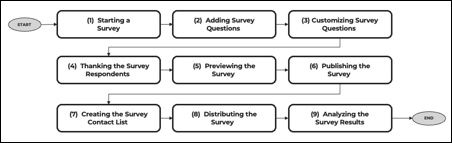
The DIY Survey Quick Start Guide provides a simplified 9-step walkthrough for creating, sending, and analyzing your survey results.
This guide covers the basics of designing a survey, setting up a contact list, sending invitations via email, and reviewing results. Start by creating a survey questionnaire, adding contacts manually or through a file upload, and selecting your distribution method. Track engagement and completion rates, then analyze responses using the reporting dashboard for insights.
Quick Start Guide Prompt
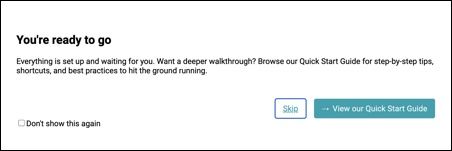
Upon logging in to the DIY Survey Builder, a Quick Start prompt will appear to help you get started with the platform. You can click View our Quick Start Guide to open the full documentation for a detailed walkthrough or select Skip to proceed directly to the platform. If you prefer not to see this prompt again in future logins or when navigating between pages, you can enable the Don’t show this again option.
Workflow Diagram
This workflow diagram provides a step-by-step overview of the end-to-end survey process in the DIY Survey Builder. It begins with creating your survey, adding and customizing questions, and continues through publishing, distributing, and finally analyzing results. Each step is designed to guide you smoothly from survey design to actionable insights.
1. Starting a Survey
A survey can be created from scratch, by selecting a template survey, or by using AI Assist to suggest questions. For this example, we’ll start from scratch.
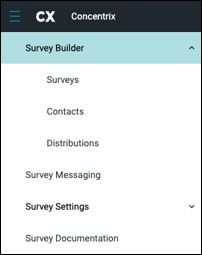
To create a survey by scratch, you must login to your Survey Builder with your account logins. Once in the Survey Builder, navigate to the top left of your screen and select the menu icon and select ‘Surveys’ from the drop-down. Once in your surveys, select the tab at the top right of your screen ‘New Survey’.
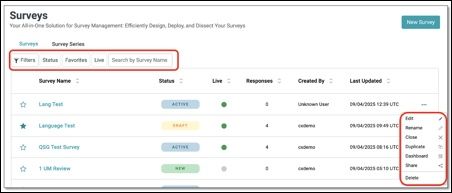
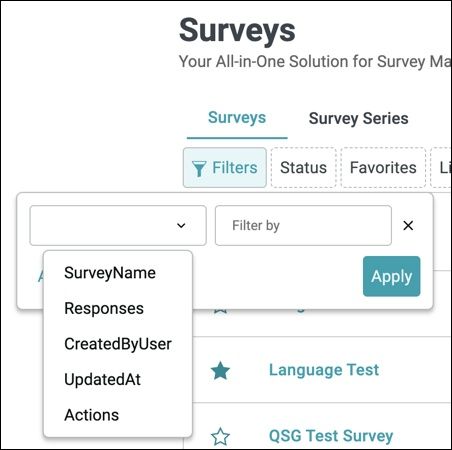
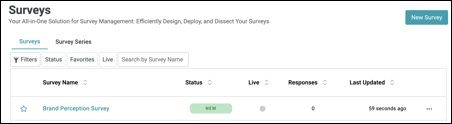
The Surveys page provides several tools to help you quickly locate and manage surveys.
Filters Allows you to narrow down the list of surveys based on specific attributes. From the dropdown menu, you can choose one of the following filter categories and apply conditions to refine your results:
- Survey Name – Filter surveys by their title or survey name.
- Responses – Filter surveys based on the number of collected responses.
- Created By User – Filter surveys by the user who created them.
- Updated At – Filter surveys by the last updated date and time.
- Actions – Filter surveys based on specific actions taken.
Once a filter is selected and criteria are entered, click Apply to display only the surveys that match your filter settings.
- Status Allows you to filter surveys by their current status (e.g., Draft, Active, New, or Completed).
- Favorites Displays only the surveys you’ve marked as favorites for easier access.
- Live Filters to show only live/active surveys that are currently collecting responses.
- Search by Survey Name A search field where you can type part or all of a survey name to quickly find a specific survey without scrolling through the list.
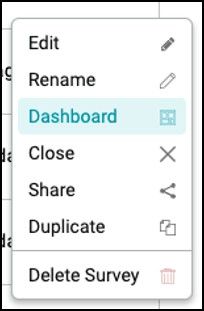
The ellipsis menu (⋮) on the far right provides quick actions for managing surveys.
- Edit – Open the survey in edit mode to update questions or settings.
- Rename – Change the survey’s title.
- Dashboard – View survey results and analytics.
- Close – End the survey and stop collecting responses.
- Share – Generate options to distribute the survey thru a link.
- Duplicate – Create a copy of the survey for reuse.
- Delete Survey – Permanently remove the survey.
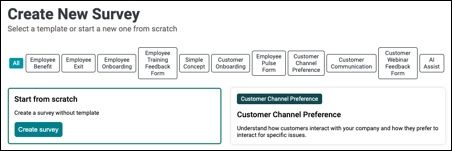
The Survey Builder offers premade templates that you can easily customize for your questionnaire. It also includes an AI Assist option where you can enter a topic and receive suggested survey questions. If you prefer to build your survey from scratch, go to the Create a New Survey homepage and select Create Survey from the first option available.
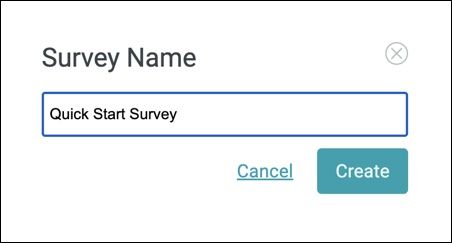
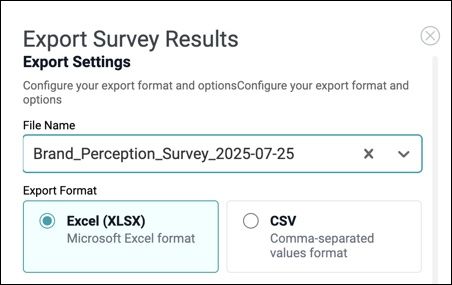
When you choose to create a survey, a modal window will prompt you to enter a Survey Name. The name you provide will be consistently used across the platform, including the Designer Page, Survey List Page, Dashboard Report Page, and Export to File. This ensures continuity throughout the survey lifecycle.
Next, after you have typed a name for the survey, select ‘Create’.
 The Survey Name you enter at the start will be retained and automatically carried over across the different pages in the DIY Survey, as follows:
Designer Page

Survey List Page
Dashboard Page
Export to File
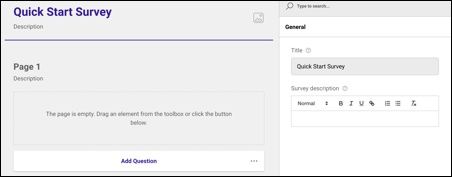
After creating the survey, go to the Designer page and use the panel on the right to customize and configure your survey. A Text Editor is also available for the survey description, allowing you to format and style the text as needed.
NOTE:
The Survey Name you enter initially will be retained and carried over through the Designer page, Survey List, Dashboard and in the exported file.
2. Adding Survey Questions
Once your survey template is ready, the next step is to add your questions. In this example, we will use three question types. To explore the full range of available question types, click the link below.
https://docs.concentrixcx.com/docs/survey/Docs/Appendix
In this first example, we will add the Radio Button Group.
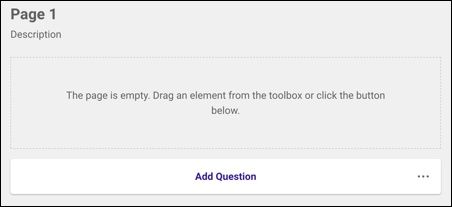
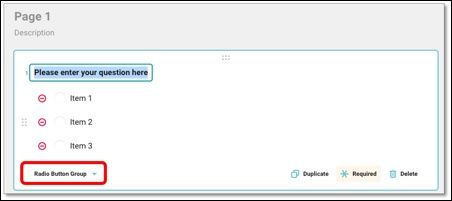
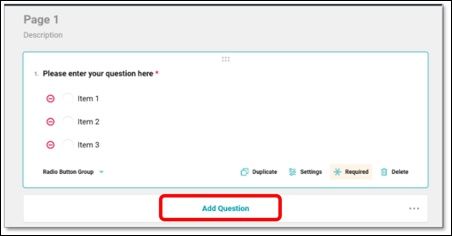
In the center panel, under Page 1, click Add Question. By default, the new question will be a single response type, also known as a Radio Button Group, which you can view in the dropdown at the bottom left of the question panel.
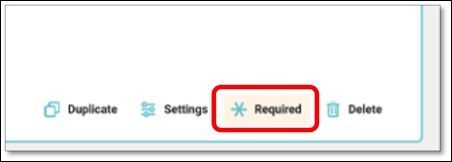
For each question you add, you will see that Required is highlighted at the bottom of the question panel, indicating that questions are mandatory by default. If you prefer to make a question optional, such as for open ended responses, simply click Required to remove the highlight. The ‘Duplicate’ icon allows you to quickly duplicate the question, making it easier to reuse question formats without starting from scratch.
3. Customizing Survey Questions
You can further edit the question using the General Properties panel on the right, where you can update and customize the question settings.
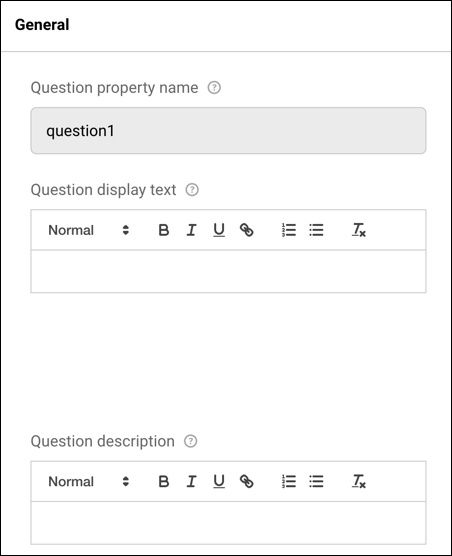
- Question property name: This name will only be visible to you and should identify the question.
- Question display text: This is the actual text shown to respondents in the form of a question.
- Question Description provides additional context or clarification about the question.
A text editor is available for the Question property name, display text, and description, allowing you to customize and format the content as needed. To edit the list of responses, use the Choice Options dropdown in the General Properties panel. Select the item you want to modify, then enter your desired response in the provided field.
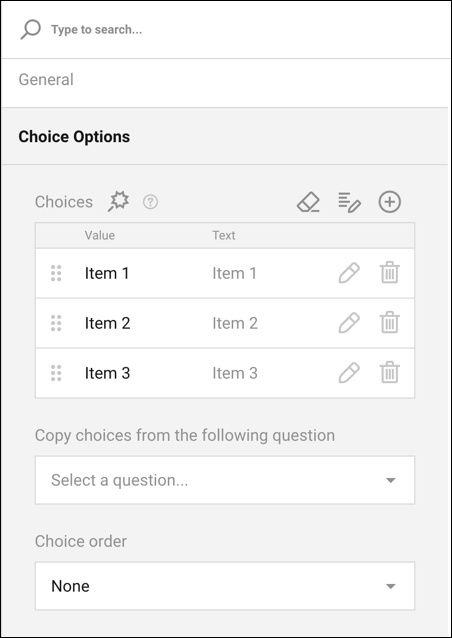
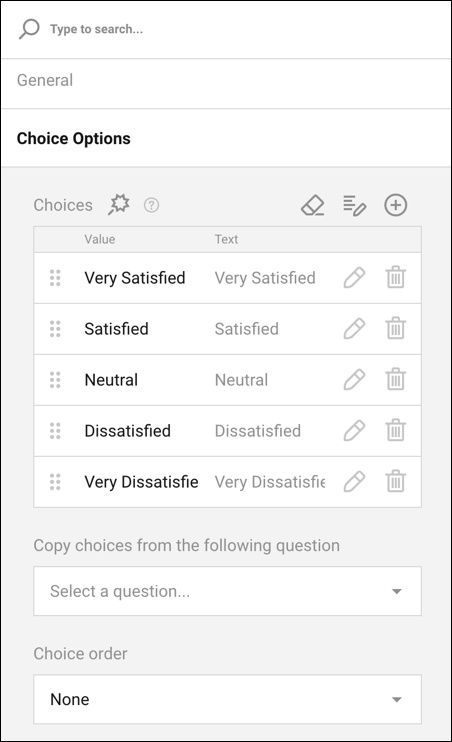 To add additional choices, select the ‘+’ icon to add a fourth and fifth option. Edit those texts as desired. All changes will be saved automatically by the system.
NOTE: You can save time by copying list choices directly from an external file, such as one prepared with a concatenation formula in Excel. This allows you to paste lists into the tool without manual formatting.
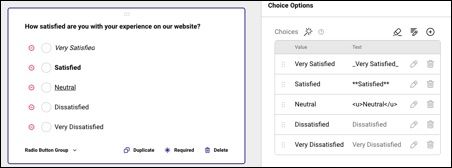
You can format your Choices by applying markup syntax to be placed before and after text or choices to define how it should be displayed. Instead of simply writing plain text, you can use these symbols to apply formatting:
- Italic The underscores here are delimiters or markup characters that tell the system to render the text in italics.
- **Bold** The double asterisks are formatting symbols (or sometimes called markdown operators) that make the text bold.
- Underline This is HTML tag syntax. The and are opening and closing tags that define underline formatting.
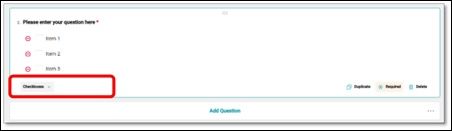
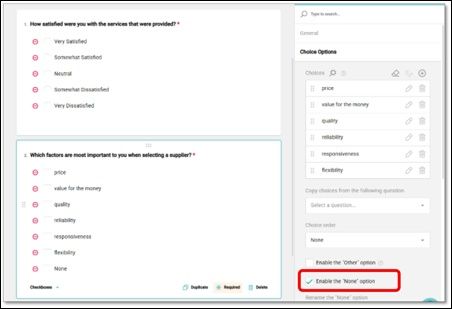
The second question type in this example is a Checkbox question, also known as a multi-response question. To create one, click Add Question at the bottom of Page 1, then go to the bottom of the question panel and change the question type from the default Radio Button Group to Checkboxes.
To customize the question, follow the same steps as before in the properties panel. Start by updating the general question properties, then modify the response list.
By selecting ‘Enable the None option’, the response ‘None’ is added to the bottom of the list.
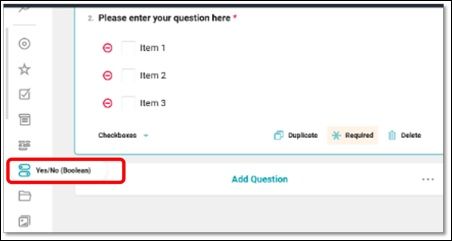
The third question type in this example is a Yes/No (Boolean) question. To create it, use the toolbox on the left side of the screen. Select and hold the Yes/No (Boolean) icon, then drag and drop it below the word “Description” on Page 2. The new question will appear once placed.
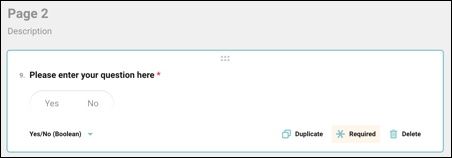
To further customize the question, repeat the steps from Step 3 within the properties panel. Start by editing the general question properties, then update the response list as needed.
4. Thanking the Survey Respondents
For this example, we want to thank respondents after finishing the survey.
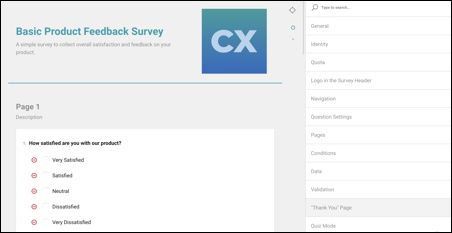
To edit the Thank You page, scroll to the top of the survey where the survey title is located. Click within the title or introduction area to update the General Properties panel. Then, go to the General Properties panel and scroll to the bottom to locate the Thank You page settings.
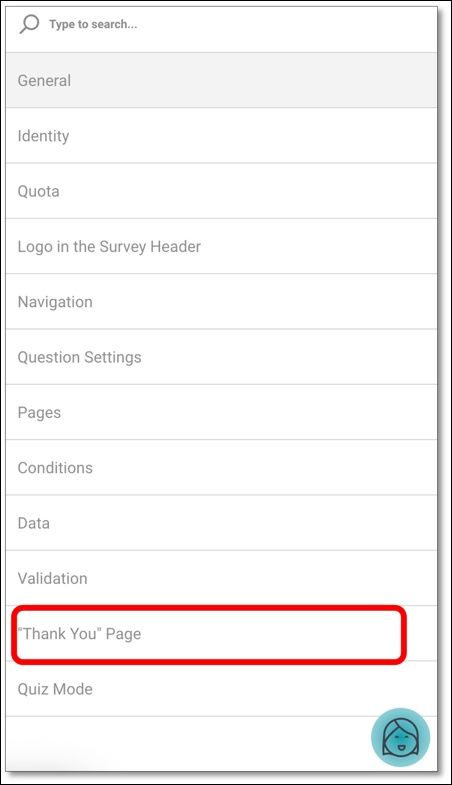
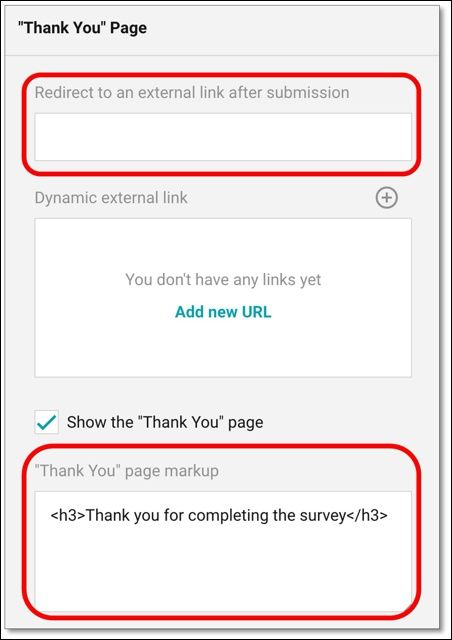
Next, select the Thank You page tab. From here, you can choose to redirect respondents to an external link or enter a custom message that will be shown after they complete the survey.
NOTE:
When using the Redirect to an external link after submission option, ensure that the external link is entered in the correct format (e.g., https://www.concentrix.com) so respondents are redirected accurately.
5. Previewing the Survey
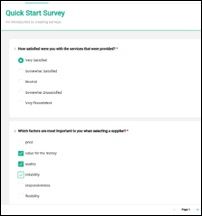
At any time, you can switch to Preview Mode to see how the survey will look to the respondents. To switch to Preview Mode, navigate to the top menu bar, and simply select “Preview”.

As you scroll through the survey, the questions are displayed as respondents will see them, allowing you to preview and test the functionality of the questionnaire.

NOTE:
You can use the arrow at the bottom of the page to quickly navigate between pages without answering each question.
At the end of the Preview, you will see the Thank You page along with a summary table of your responses.
Please note that external link redirects on the Thank You page will not function in Preview mode.
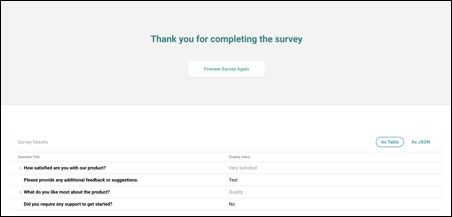
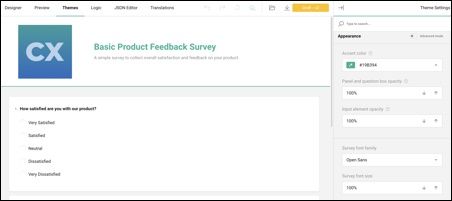
To further customize the survey while looking at the preview, you can also change the appearance under the Themes Module.
6. Publishing the Survey
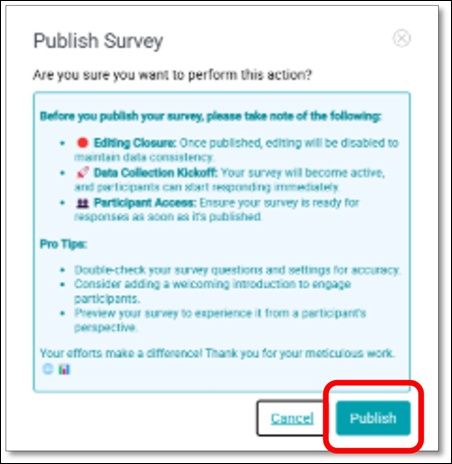
Once you are satisfied that the survey is ready, you can proceed to publish it. To do this, go to the top right of the screen and click Publish from the main menu.

Then click ‘Publish’ to confirm!
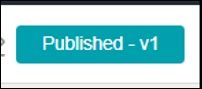
The status will change on the main menu, and a message will appear at the bottom of the screen.

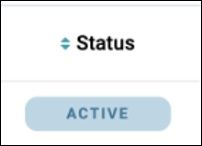
You can also verify if the survey is live when the status will change to ‘Active’ under the survey list page.
Now you’re ready to send out your survey using the Distribution feature.
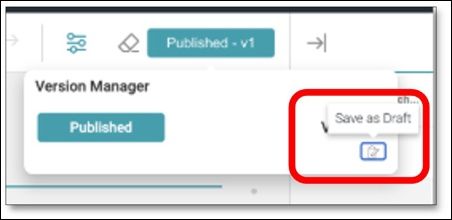
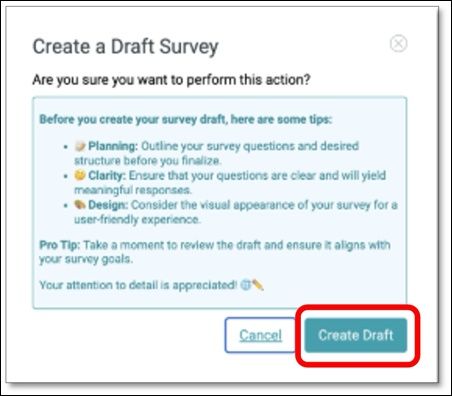
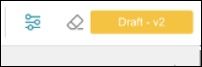
NOTE: To edit a published survey, go to the survey list page and locate the survey you want to update. Click the ellipsis on the far right, then select Edit to return to the questionnaire. From the top right menu, click Published and choose Save as Draft. After making your changes, you can publish the survey again using the same steps.
7. Creating the Survey Contact List
Before sending out your survey, you need to create a contact list of the people you want to reach. In this section, we’ll show you how to upload a file to create a Contact Group that can be used for distribution.
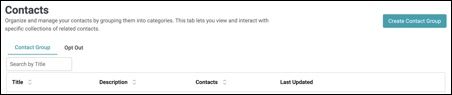
From the top-left corner of the screen, select the menu icon. When the menu bar expands, click on the Contacts tab. The Contacts tab serves as your database, displaying the complete list of your contacts. This is also where you can create a Contact Group thru file upload.
The Contact Group tab allows you to organize your contacts into reusable groups for easier management. By creating groups, you can quickly segment contacts, making it simpler to target specific audiences for campaigns or communications. From this tab, you can view, delete and update your contact groups.
To prepare for file upload, we’ll build a list of invitations in a CSV file. This is done in an Excel workbook and then saved specifically as a CSV. Follow this example below to create a short list of survey respondents in your Excel Workbook.

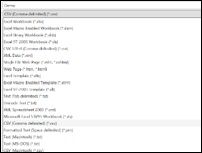
Your file must include at least an email address. You can also add other columns with details about each respondent. These details can help customize the survey experience and will be saved with the responses to facilitate data analysis.
Notes on the input file:
- Always include an email column containing a unique address – no duplicates.
- Limit the facts to one value per cell (e.g., don’t put “Cat, Dog” in the pet column.)
Save the file as type CSV, of up to 50 MB file size.
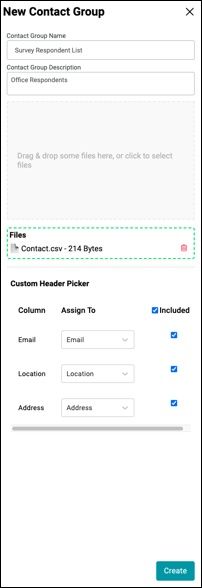
With your file now prepared, at the top left of the screen, select the menu icon, go back to your Contacts module, then select ‘Create Contact Group’. Indicate your Contact Group Name and Description, then click the ‘Drag & drop some files here or click to select files’ canvas to upload the file.
NOTE: Contact Group Name is a required field and must be filled in before you can create a Contact Group. This will enable the ‘Create’ button.
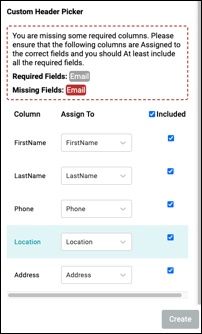
NOTE: A warning message will appear if the required email address is missing from the uploaded file.
The uploader will read the column headers and prepare to upload records. You may also choose whether to include columns in the upload. We’ll include them all.
Select ‘Create’.
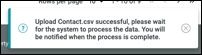
Then you will see the Contact Group Name you created under the Contact Group tab. We now have a contact list to target with invitations. To invite contacts for participation in a survey, we will create a Distribution.
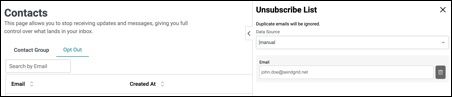
How to Add Emails to the Unsubscribe List using the Opt Out Feature
The Opt Out feature allows users to manage email preferences by unsubscribing specific contacts from receiving survey invitations, updates, or messages. Once an email is added to the Unsubscribe List, it will automatically appear under the Opt Out tab, ensuring the contact will no longer receive any communications.

To add contacts to the unsubscribe list, begin by clicking the Add Unsubscribe List button located at the top right of the screen. A new panel titled Unsubscribe List will appear, allowing you to choose the data source.
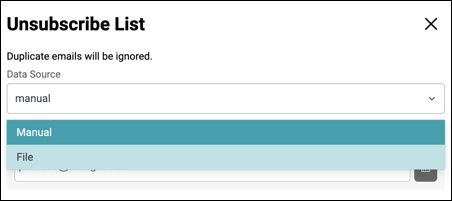
You can either select Manual to enter individual email addresses one at a time or choose File to upload a CSV file containing multiple email addresses. Once you have entered or uploaded the email addresses, the system will automatically ignore any duplicates to prevent redundancy. Finally, click **Create **button to complete the process and it will automatically add the email/s to the unsubscribe list table.
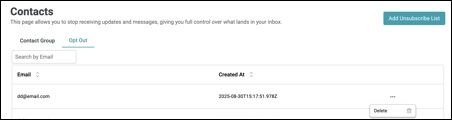
To resubscribe an email, simply remove it from the list by clicking the Delete icon found under the ellipsis menu.
NOTE:
Survey Respondents who select the ‘Unsubscribe’ option from the link in the survey invitation will automatically be added to the Opt Out list.
8. Distributing the Survey
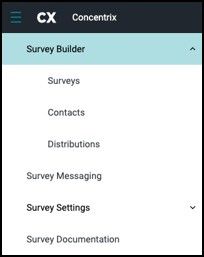
Once you’ve created your contact list and published your survey, you’re ready to distribute it. To do so, go to the top-left menu toolbar and click on the Distributions tab to start sending out your survey.
First you will see the Distributions table that provides a summary of all configured survey campaigns, showing key details such as the distribution name, current status (e.g., Active or Draft), distribution method (email in this case), survey type (Single or other), the creator of the campaign, and the last time it was updated.
This section helps you easily track and manage ongoing and draft distributions, ensuring timely delivery to the intended audience.
NOTE:
Users can use the “Search by Name” box to quickly locate a specific distribution name instead of scrolling through the entire list.
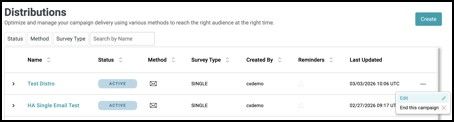
On the Distribution page, navigate to the top right of your screen and select the ‘Create’ button. Then enter a name for the distribution, and description (optional)

Select how you would like to deliver your survey to respondents. The Distribution Method determines the channel through which participants will access and complete the survey, depending on your engagement strategy and audience needs.
In this example, we’ll choose ‘Email’ as the distribution method. Click on the Email icon as illustrated below.
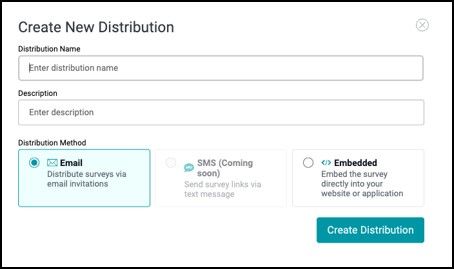
- Email: Delivering the survey through the respondent’s email
- SMS - Distribute surveys via SMS with a mobile-friendly link – Coming Soon!
- Embedded: Deliver in-app surveys or website intercepts by embedding them into your website or application – Coming Soon!
NOTE:
On the upper right, there is a small icon beside the Save Distribution button. This icon serves as a shortcut that takes you directly to the Distribution Dashboard.
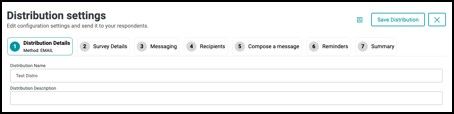
In the ‘Distribution Details’ tab, the distribution name you created initially will be displayed. You can add an optional description in the provided field to give more context.
NOTE:
There’s another option to distribute the survey, thru Share URL: Sending the survey using the ‘Share’ button with the survey link. Refer to the Survey List page, look for the ellipsis icon (the three vertical dots).
After you have completed those tasks, select the 2nd tab at the top of your screen to move to the ‘Survey Details’ tab. Select the survey type you wish to distribute. For this example, we will only be using the Single Survey.
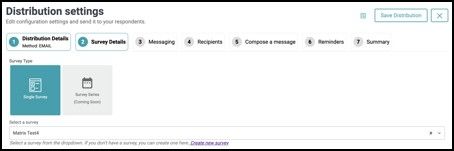
The Survey Details tab allows you to define the type of survey that will be used for the distribution. In this section, you can select the Survey Type that determines how the survey will be delivered to respondents.
To distribute a Single Survey, navigate to the distribution settings and select ‘Single Survey’. Once in the Survey Detail, select ‘Single Survey’ within the survey type options. By selecting the Single Survey, you will see a dropdown appear. Select the surveys you create to be used for distribution.
Currently, the available option is Single Survey, which allows you to distribute one survey to your selected recipients. This option is commonly used for standard survey distributions where respondents receive and complete a single survey. Another option, Survey Series, is displayed but marked as Coming Soon and is not yet available for use.
Two types of surveys:
Single Survey is designed to provide feedback on a specific survey. It can be scheduled to appear multiple times within a designated period, offering respondents multiple chances to participate. If no start or end date is specified, you can configure the occurrences to determine how frequently the survey is displayed based on a selected time interval. When this type is selected, the Reminders tab will become available, allowing you to enable and configure reminders if needed.
Survey Series (coming soon) is a structured collection of multiple surveys that are sent out in a predefined order over a period of time. This allows for a more comprehensive assessment by collecting insights at different stages or from various perspectives.
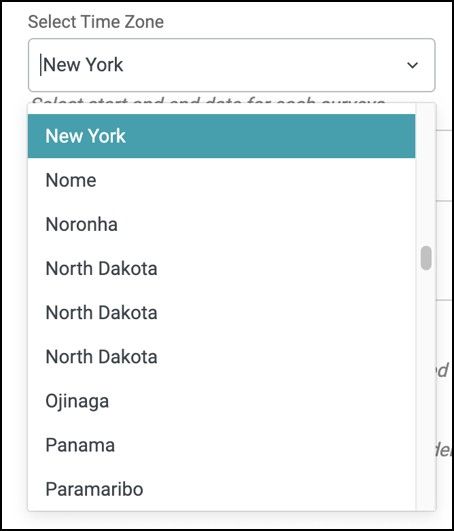
The Select Time Zone dropdown now uses a location-based format that displays specific cities or regions instead of only general time zone labels. This format helps users more easily identify the correct time zone based on geographic location, ensuring that scheduled survey distributions run according to the intended local time.

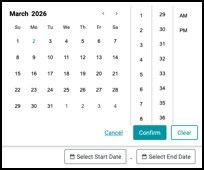
After selecting a survey and time zone, you can customize its start and end dates, along with the time, by clicking the **Start and End Date **option located on the far right of the survey panel.
To set the schedule:
- Click Select Start Date to define when the survey should begin. Upon clicking, a date and time picker prompt will appear, allowing you to choose the desired date and specify the exact time the survey will go live.
- Click Select End Date to define when the survey should close.
A similar date and time selection prompt will appear, enabling you to set the survey expiration date and time. Once both values are selected, the survey will automatically activate and deactivate according to the configured schedule.
If you would like your recipients to remain Anonymous, enable the anonymous tab, recipients will not receive personalized URLs, and their responses will not be tracked.
To have recipients have a username or password protected enable the username and/or password.

Username
Once you enable Secure with username, respondents will receive an email with their username, which they can use to log in to the survey.
Password
Once you enable Secure with password, respondents will receive an email with their password, which they can use to log in to the survey.
NOTE:
The Reminder tab will automatically added only under the Single type of survey.
Next step is the ‘Messaging’ tab, it allows you to select and review the message templates associated with your survey distribution. These templates define the messages that respondents may see during the survey process, such as Authentication, Quota, Closed, Unsubscribe, FAQ, and Privacy Policy. This ensures consistent branding, clear instructions, and better respondent experience.
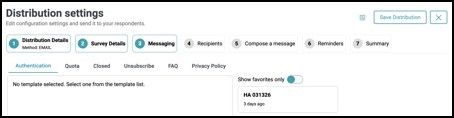
Available Messaging Sections:
- Authentication
Set up custom messages for login or access authentication pages to ensure only authorized respondents can participate.
NOTE:
This option is available only when ‘Secure with Username’ feature has been selected. - Quota Configure the message shown when the survey quota has been reached, informing respondents that no further responses can be accepted.
- Closed Define the custom message displayed when the survey has ended or is no longer accepting responses.
- Unsubscribe Create a branded unsubscribe page template that allows respondents to opt out of future survey invitations. Resubscribe – Allow respondents who previously opted out to rejoin and receive future survey invitations by accessing a branded resubscription page.
- FAQ Provide a Frequently Asked Questions page to help respondents find quick answers and reduce confusion.
- Privacy Policy Display a privacy statement outlining how respondent data will be collected, used, and protected.
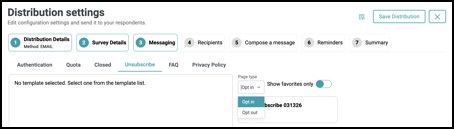
The Opt-In/Opt-Out functionality in the Unsubscribe tab allows you to control how recipients manage their participation in future survey communications.
- Opt-In: Allows respondents to confirm their interest in receiving future survey invitations. Use this when consent is required before including them in future outreach.
- Opt-Out: Gives respondents the option to unsubscribe from future survey communications. Ideal for letting users easily opt out via email links or unsubscribe pages.
NOTE:
Use these settings to comply with data privacy policies and provide respondents with control over their communication preferences.
Template Selection
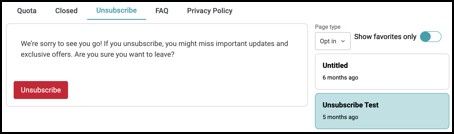
On the right side, you can select from a list of available templates (e.g., Untitled, Test template, Log in Page). Each template can be previewed, reused, or marked as a favorite for quick access. Toggle Show favorites only to filter the list to your most frequently used templates.
NOTE:
Templates can be configured by users with the appropriate access level under the Survey Messaging module from the main menu
After you have input the messaging setting, select the fourth step within the distribution process of choosing the recipients. In the ‘Recipients’ tab, utilize the dropdown to select an entire contact list from the lists you previously created. You may also add Single Contacts by manually entering one or more email addresses in the provided field. This option is useful when sending the survey to a small number of recipients without creating a full contact group.
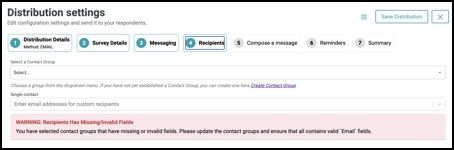
NOTE: If the selected contact group contains missing or invalid information, such as incomplete or incorrect email fields, a warning message will appear prompting you to update the contact data.
Next, you can create a message that your recipients will receive when getting the survey. This can explain the purpose of the survey or instructions on how to complete it. To ‘Compose a Message’ tab, select the fifth step within the distribution.
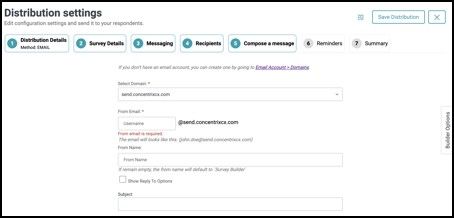
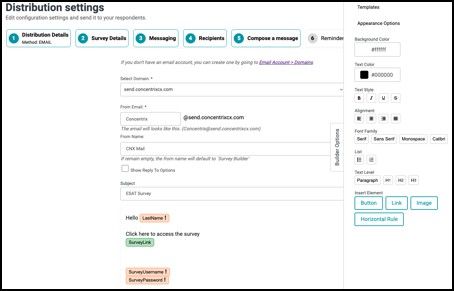
First, select the Domain that will be used to send the email. Then enter the From Email username, which will generate the full sender email address using the selected domain. You may also specify a From Name, which is the display name recipients will see when they receive the email. If this field is left blank, the system will default to “Survey Builder.” You can optionally enable Reply-To Options if you want responses to be directed to a specific email address.
Next, enter the Email Subject and compose the message content that will appear in the email invitation.
Subject This field allows you to define the email subject line that recipients will see. This should clearly communicate the purpose of the survey invitation to encourage engagement.
Message Body The message body section is where you compose the email content that respondents will receive. You may include placeholders such as @survey to dynamically insert the survey link into the email.
 NOTE:
NOTE:
Before you can send survey invitations, you must first set up a valid sender email under the Email Account Settings module.
If no email account has been configured yet, you need to navigate to Email Account > Domains to create and verify a sending domain. Once the domain is set up and verified, you can generate a sender email address that will be used for distributing surveys. Refer to ‘Survey Administration& Settings – Establishing Email’ for the detailed steps and documentation.
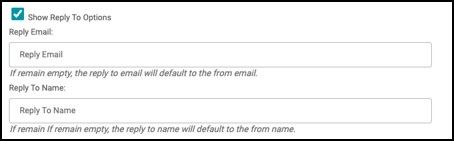
Show Reply-To Options Selecting this option allows you to configure a separate reply-to email address. This is useful if responses should be directed to a different mailbox than the sending address.
When enabled, the following fields become available:
-
Reply Email This field allows you to enter the email address where responses from recipients should be directed. If left blank, replies will automatically default to the From Email address.
-
Reply-To Name This field defines the display name that appears when recipients reply to the email. If left empty, the system will default to the From Name configured in the sender details.
If you prefer composing your own message, start by entering a Subject. Next, begin typing your message in the body section. To insert a survey link, simply use the ‘@’ symbol again and select the appropriate link. You can personalize your message by using the ‘@’ symbol, which lets you insert dynamic fields such as the recipient’s First Name, Last Name, Email, or Phone Number. The @ functionality pulls in the fields from the Single contact or Contact list under the Recipients tab. Once your message is complete, you have the option to save it as a template for future use.
NOTE:
When using the @ function to insert variables from your contact list, the dropdown menu will display only the available variables from your list. Variables not included in the contact list, as well as username and password (if not enabled in the Survey Details tab), will not appear in the dropdown.
If a variable has a fallback value, its box will be highlighted in green. If no fallback value is set, the box will appear orange.
If you choose to add a button to your message, you can edit it after creation by clicking on the shaded area beside the button.
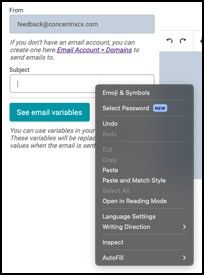
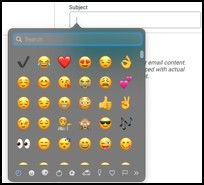
You can further customize your email subject line by adding emojis or symbols for added emphasis and personalization. Simply right click in the Subject field and select “Emoji & Symbols” from the menu to insert icons that can help your message stand out in the recipient’s inbox.
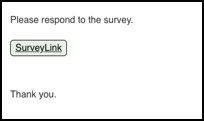
Applying Links to Custom Text in Your Survey
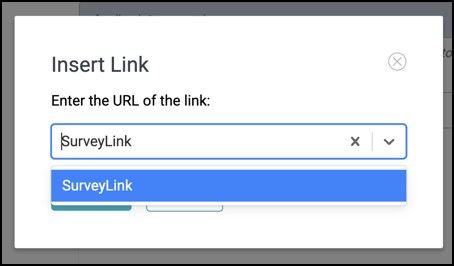
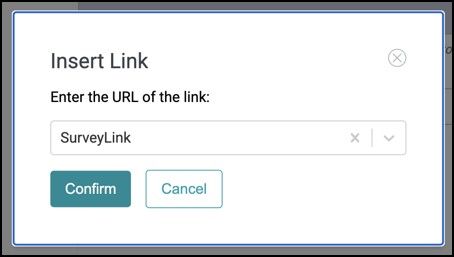
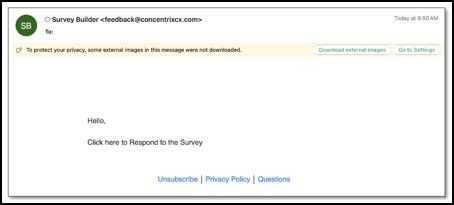
You can customize your text (e.g. Click here to take the survey) by selecting the ‘Link’ button from the Builder Options. Click the drop-down list to select the hyperlink, then click the Confirm button.
NOTE: Hyperlinking works only when applied to custom text. If you press the “Link” icon without highlighting text, the hyperlink will not be inserted.
NOTE:
Ensure the hyperlink is working in the live survey invite.
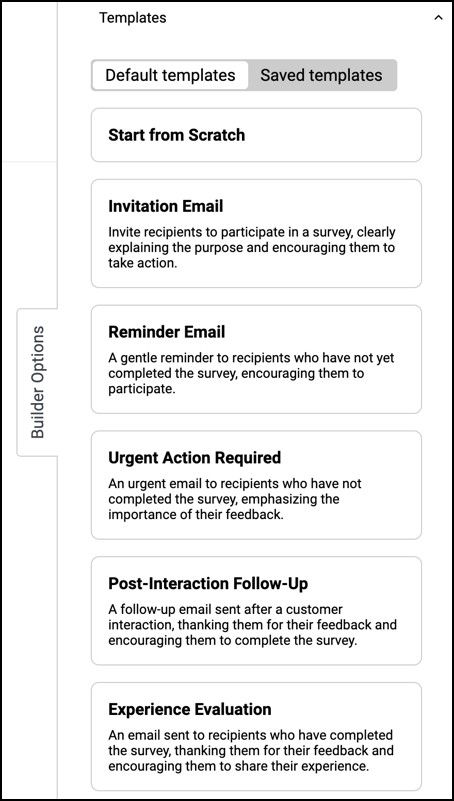
On the right side of the page, you can choose from available email templates under the Builder Options - Templates panel. Click the tab to expand and show the templated available. These templates provide predefined message formats such as Invitation Email, Reminder Email, Urgent Action Required, Post-Interaction Follow-Up, and Experience Evaluation. You may select a template to quickly populate the message or choose Start from Scratch to create a custom message.
Builder Options Tab
Builder Options – Templates
The Builder Options - Templates panel allows you to choose from pre-designed email templates or start from scratch when creating survey-related emails. These templates help you quickly craft messages for inviting, reminding, or following up with respondents.
- Default Templates: A set of ready-made templates to use as-is or customize for your needs.
- Saved Templates: Access and reuse templates you’ve previously created and saved.
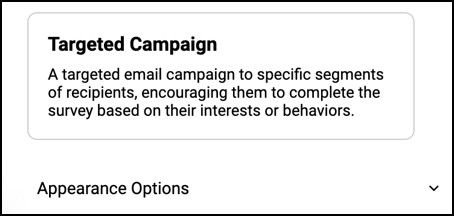 Builder Options – Appearance Options
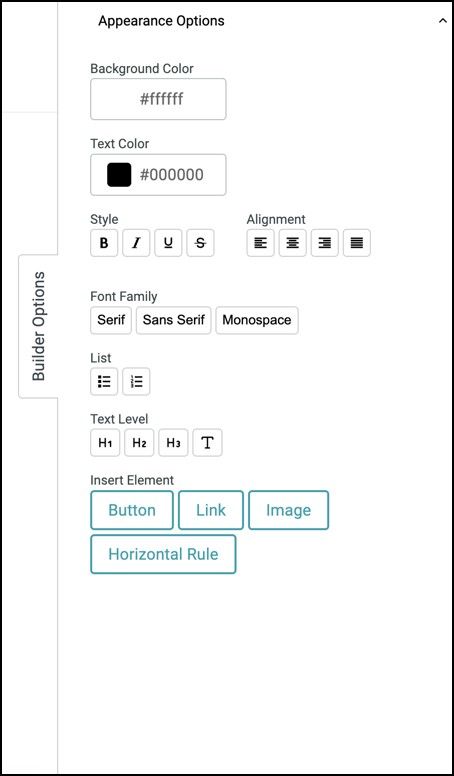
The Builder Options – Appearance Options (found at the bottom of the Templates tab) is a panel to design and format your survey email. Apply styles like bold, italics, underline, and headings to make text stand out. Adjust font type, size, text color, and alignment for a polished look. You can also insert buttons, links, images, or dividers to enhance engagement. Customize background and text colors to match your branding and use lists for better content structure.
Appearance Options
- Background Color: Set the email’s background color using a color picker or HEX code.
- Text Color: Change the default text color with a picker or HEX code.
Style
- B: Bold text. I: Italicize text. U: Underline. S̶: Strikethrough for edits or emphasis.
Alignment
- Align text left, center, or right.
List
- Create bulleted or numbered lists for better structure.
Text Level
- H1–H3: Add headings. T: Reset to normal text.
Once you’ve set up your email message, you can choose to send reminders to your survey respondents under step 6. In the ‘Reminders’ tab, you can configure automated follow-up emails for recipients who haven’t completed the survey, specifying when the reminders will be sent and how often they should occur.
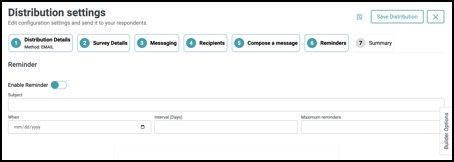
Enabling Reminders
The Reminder feature helps ensure higher survey response rates by automatically sending follow-up emails to recipients who have not yet completed the survey. Within the Recipients tab, you can enable and configure reminders to be sent at scheduled intervals, set the maximum number of reminders, and personalize the message. This feature provides a simple yet effective way to keep participants engaged and encourage timely responses.
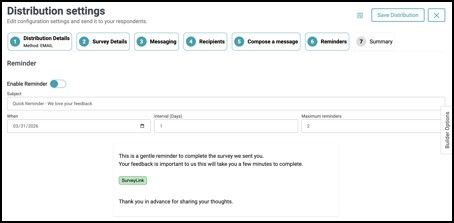
NOTE:
Ensure that all fields are completed, as each one is required to proceed.
Once enabled, you can configure reminder details:
- Subject: Enter a subject line for your reminder email.
- When: Choose the start date for when reminders should be sent.
- Interval (Days): Set how many days apart reminders will be sent.
- Maximum Reminders: Define the maximum number of times reminders should be sent. Once the maximum number of reminders has been reached, no additional reminders will be sent.
- The message you create in the Reminder section will serve as the actual email content sent to recipients when the reminder is triggered.
NOTE:
The reminder feature is available only when using the Email method and applies automatically to Single type surveys only.
The Builder Options feature provides tools to customize your email messages. Through the Templates panel, you can quickly create messages by choosing from ready-made default templates or reusing saved ones, helping streamline invitations, reminders, and follow-ups. If you wish to use the same template for both your initial message and your reminder, save your initial message as a template in Step 5 – Compose a Message, then select that template from the Templates panel in Step 6 – Reminders. You can further modify your reminder message if needed.
Additionally, the Appearance Options panel allows you to design and format your emails to match your branding by adjusting fonts, colors, alignment, and styles, as well as adding buttons, links, images, or dividers for better engagement and readability.
After saving, a Scheduled Reminder summary will display the configured settings.

Select the ‘Summary’ tab to review your work. The “From” field should display the email account configured under the Email Account menu.
After completed, you can save this template or continue to step 7.
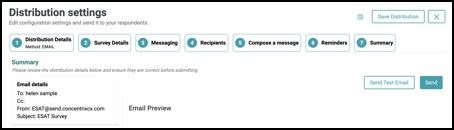
The Summary section provides an overview of key distribution details, including Email Details, Survey Details, and other relevant settings. This section serves as a final review point to ensure that all information is accurate and properly configured before sending out the survey for distribution.
Now we can click on ‘Send Test Email’ to see the invitation in action.
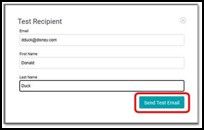
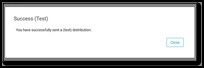
To save, select ‘Save Distribution’
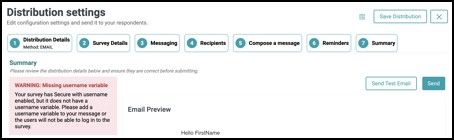
NOTE: This applies only to campaigns that have selected the “Secure with Username” option. If the required username shown in the Compose a Message tab is not included, a pop-up warning will appear in the Summary tab stating: “WARNING: Missing username variable.” Ensure all necessary details are completed before sending out the survey for distribution.

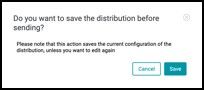
After completing all setup steps in the Distribution module, you can have the option to save your configuration by clicking the Save Distribution button in the upper-right corner. A confirmation pop-up will appear, allowing you to either save or cancel. Saving ensures that all details are preserved for future edits or use before sending out the survey.
Sending Out the Distribution
When you’re confident that everything is ready to send to your contact list, select ‘Send’ button. Your invitation will be sent to your contact list, and respondents can start receiving your survey invitation.
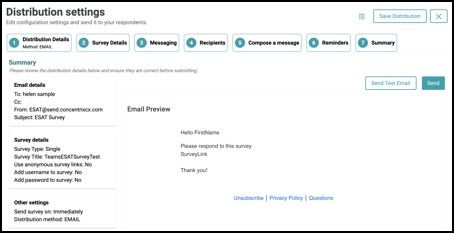
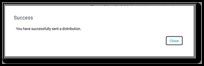
When the invitation is received and the respondent clicks on the URL, they will be able to accomplish and complete the survey, the corresponding responses will be collected on the platform.
9. Analyzing the Survey Results
To gather your data, navigate to the menu icon at the top left of your screen. Select the Surveys tab.
To view the results, you have two options to access the survey dashboard:
-
Go to the Survey Builder menu and select Surveys from the drop-down list to access the list. From there, click on the survey name to be taken directly to the survey dashboard
-
Navigate to the far right of the survey and select the ellipsis icon (the three vertical dots). After you have selected the ellipsis icon (the three vertical dots, select the ‘Dashboard’ icon. This will bring you to the results of your survey.
NOTE:
This Dashboard view lets you see all results associated with a particular Survey, regardless of which Distribution was associated with the data. Any changes made in this dashboard will not affect the Distribution Dashboard views
Survey Dashboard
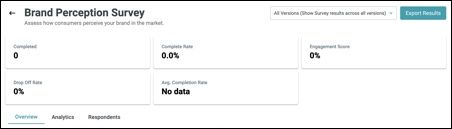
The Survey Dashboard provides a comprehensive view of your survey’s performance and responses. It is divided into three main tabs—Overview, Analytics, and Respondents —each designed to help you monitor participation, analyze feedback, and review individual responses efficiently.

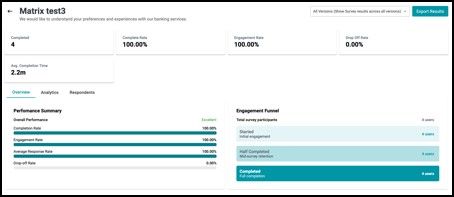
The Metrics displayed at the top offer a quick summary of survey performance.
Metrics and Components:
Completed Displays the total number of respondents who have fully completed the survey. This reflects successful survey submissions.
Completion Rate Represents the percentage of respondents who started the survey and completed it. A higher completion rate indicates strong engagement and a well-optimized survey experience.
Engagement Rate Shows the percentage of participants who meaningfully interacted with the survey after accessing it. This metric helps measure how effectively the survey captures respondent attention.
Drop Off Rate Indicates the percentage of respondents who started but did not complete the survey. A high drop-off rate may suggest survey length, complexity, or user experience issues.
Average Completion Time Displays the average time respondents take to complete the survey. This helps assess whether the survey length is appropriate and whether respondents are progressing smoothly through the questions.
Additionally, the Export to File feature allows you to download survey results in a customizable format for further analysis or reporting. You can configure export settings, select the data types to include, and choose the file format that best suits your needs.
All Version (Show Survey results across all versions)
At the top right of the page, you’ll find the All Versions option. Selecting this ensures that responses from all survey versions—whether participants completed the original or any updated version—are included in the results.
This feature allows you to view and export data from all published versions created through the Draft and Publish process. It is especially useful when you need a comprehensive dataset that consolidates responses across every iteration of the survey for analysis or reporting purposes.
Main Tabs
- Overview tab gives you a quick summary of key metrics like completion rates, engagement levels, and response patterns.
- Analytics tab offers visual insights with charts, graphs, and word clouds to help you interpret results at a glance.
- Respondents tab allows you to drill down into individual participant data, view responses, and manage respondent information.
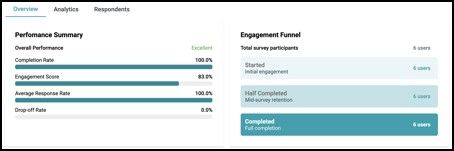
Overview Tab
The Overview tab provides a high-level summary of your survey’s performance and engagement metrics. It gives you quick insights into how respondents are interacting with your survey.
Key Components:
- Performance Summary: Displays overall metrics such as Completion Rate, Engagement Score, Average Response Rate, and Drop-off Rate, with visual progress bars for easy interpretation.
- Engagement Funnel: Shows the total number of survey participants and tracks their progress through stages: Started, Half Completed, and Completed.
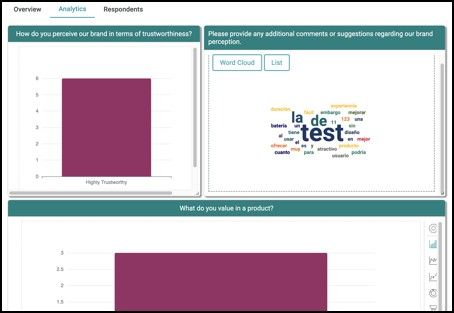
Analytics Tab
The Analytics tab presents detailed data visualizations of your survey responses to help you analyze trends and insights. It allows you to view survey responses through various visualizations such as bar charts, line graphs, and pie charts for each survey question.
For open-text responses, a word cloud highlights the most frequently used words, making it easy to identify common patterns and themes. You can also switch to a list format to see a detailed breakdown of individual open-text feedback for deeper analysis.
Under the Settings icon (represented by the gear icon located within each chart), you can configure chart layouts and options. Choose vertical or horizontal orientation, toggle titles and legends, and adjust margins for alignment. Set your base field (e.g., “Choice” or “Value”), select chart types and colors, and customize axes with labels, intervals, and scaling. Advanced options let you add series labels, define color logic, and choose between column or row layouts for clearer data visualization.
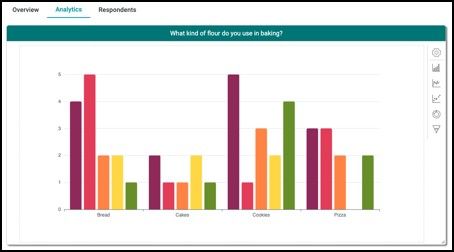
When you click on the Setting icon, you will be directed to a panel where you can further customize your chart. It provides a range of options to control chart layout, appearance, margins, data configuration, axis behavior, and advanced styling. By adjusting these components, you can create clear, meaningful, and visually engaging charts that best represent your survey data.
Respondents Tab
The Respondents tab provides a respondent-level view of survey data, allowing you to see individual answers, response statuses, and the time each respondent took to accomplish the survey.
Key Components:
-
Respondent List: Displays each participant’s email (if available), their completion status, responses to each question, and the time it took them to complete the survey (Response Time).
-
Default Response Language: Lets you translate responses into a different language for easier review or revert to the original language in which the survey was answered.
For the Distribution Dashboard, located on the upper right, there is a small icon beside the Save Distribution button. This icon acts as a shortcut that takes you directly to the Distribution Dashboard, where you can view the consolidated survey responses when using Survey Series (Coming soon) as the survey type.
The Distribution Dashboard provides a high-level overview of your survey distribution performance. It displays key engagement and completion metrics to help you quickly understand how respondents interact with your survey. This dashboard helps you monitor participation, identify drop offs, and evaluate overall distribution effectiveness. The layout and metrics follow the same format used in the Survey Dashboard.
Exporting Results
The Export Results feature allows you to download survey data in a structured file for analysis, reporting, or record-keeping. You can choose what data to include and track the export progress through system notifications before downloading the final file.
How to Export Survey Results
Access Export Results
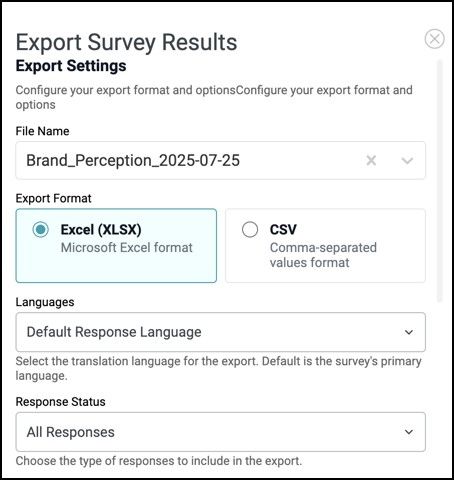
From the Survey Dashboard, locate and click the ‘Export Results’ button at the upper-right corner of the page. This button is available when viewing survey results across one or multiple versions.
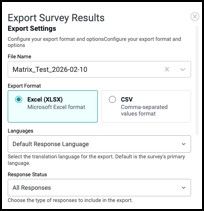
In the Export Settings, you can specify the file name (auto-generated but editable), choose a format like Excel for easy viewing or CSV for lightweight data handling, and set the default response language to translate or keep responses in their original language. You can also filter which responses to include based on their status, such as all responses or completed only.
-
File Name: Specify the name of the export file. A default name based on the survey title and date is auto-generated but can be edited.
-
**Export Format: **Choose your preferred file format: o Excel (XLSX): For easy viewing and manipulation in spreadsheet tools. o CSV: For a lightweight, comma-separated values format compatible with most data systems.
-
Languages: Use the Default Response Language dropdown to select the language for export. This lets you translate responses into a chosen language or keep them in the original survey language.
-
Response Status: Filter responses to include in the export (e.g., All Responses, Completed & Ongoing Responses Only, etc.).
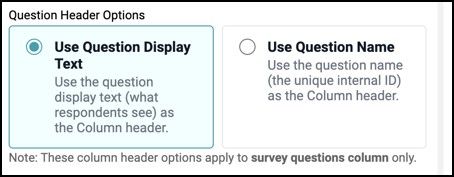
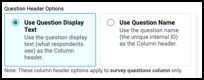
Question Header Options
- Use Question Display Text Displays the full question text (what respondents see) as column headers.
- Use Question Name Displays the internal question ID as column headers.
Navigating Data to Export
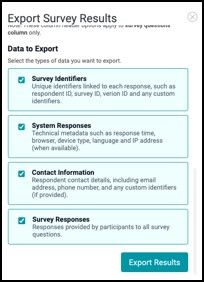
- Survey Identifiers: Includes unique identifiers like respondent ID, survey ID, version ID, and any custom fields.
- System Responses: Includes technical metadata such as response time, browser, device type, language, and IP address when available.
- Contact Information: Adds respondent details such as email address, phone number, and custom identifiers (when provided).
- Survey Responses: Includes all answers provided by respondents to survey questions.
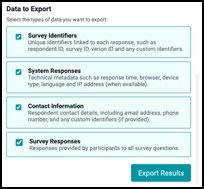
Once all options are configured, click Export Results button to generate and download the file.
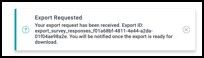
Export Request Confirmation
After submitting the export request, a confirmation message labeled “Export Requested” will appear at the bottom of the screen. This confirms that your request has been successfully received and is being processed.
Monitor Export via Notifications
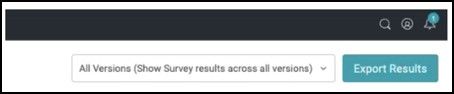
When the export file is ready, you will receive a notification through the notification bell located in the upper-right corner of the application.
Click the notification to view the export entry related to your survey.
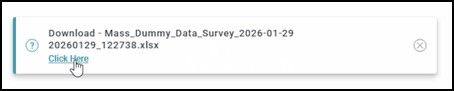
Download the Export File
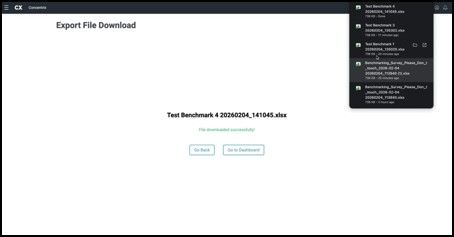
Selecting the notification will redirect you to the Export File Download page. From here, you can click the provided download link to retrieve your file.
Once the download is complete, a confirmation message will indicate that the file has been successfully downloaded. You may then choose to:
Sample Raw Data File
The color-coded raw data file contains detailed information, including survey responses, system responses, contact details, and survey identifiers. This comprehensive dataset can be used for further analysis and reporting.

Congratulations! Now that you have completed your first survey, you are ready to utilize the many features of the DIY Survey Builder.
Explore advanced features like logic, branching, themes, translation, and more in the User Manual that will be released very soon.